

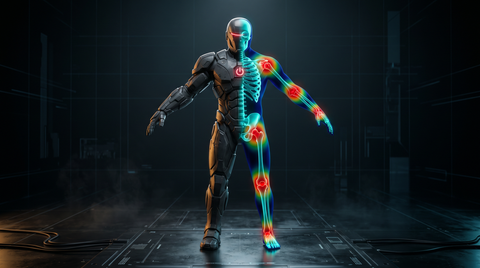
Why Rig Quality Matters for Motion Capture
Motion capture is only as good as the rig it drives. A poorly constructed skeleton—one with misaligned joint axes, non-standard bone naming, or inconsistent proportions—will produce broken retargeting, foot skating, limb twisting, and spine distortion regardless of how clean the original capture data is. The rig is not just a technical requirement; it is the foundation that determines whether your mocap investment translates into usable animation.
This is true whether you are working with live capture sessions, downloading pre-made FBX animation packs, or retargeting assets from a marketplace. Every retargeting system—HumanIK in Maya, MotionBuilder's Character system, Unreal Engine's IK Retargeter, Unity's Mecanim—depends on the rig being correctly structured and consistently oriented to produce accurate results.
This guide covers the rig preparation decisions that have the highest impact on mocap compatibility: pose standards, bone naming, spine setup, hand rigging, IK vs FK, and the most common mistakes that cause retargeting failures.
T-Pose vs A-Pose Standards
The bind pose of your character skeleton determines how retargeting algorithms interpret joint relationships. There are two dominant standards in real-time game development:
T-Pose
The T-pose has arms extended straight out to the sides, parallel to the ground, forming a "T" shape. This was the universal standard in game development through most of the 2010s and remains the default for:
- Unreal Engine 4 and the legacy UE Mannequin
- Most older FBX animation libraries
- Maya's HumanIK default characterization pose
- 3ds Max Biped
A-Pose
The A-pose has arms angled downward approximately 45 degrees, forming an "A" shape. The A-pose is now the default for:
- Unreal Engine 5 Mannequin (Quinn and Manny)
- MetaHuman characters
- Most modern character generators (Character Creator, Daz 3D, ReadyPlayerMe)
The A-pose reduces shoulder deformation artifacts during animation because the resting arm angle more closely matches common character movement ranges. When arms drop to the sides or reach forward, an A-pose rig interpolates more naturally than a T-pose rig.
Practical recommendation: Build your rig in an A-pose if targeting UE5 or modern character pipelines. If you are working with legacy UE4 content or older animation libraries, use a T-pose to avoid retargeting complications. Unreal's IK Retargeter can handle T-to-A conversion, but matching poses between source and target skeletons always produces cleaner results.
Bone Naming Conventions
Bone naming conventions are not arbitrary—they are how retargeting tools auto-detect joint roles. If your naming does not match the expected patterns, auto-detection fails and you must manually map every joint.
Unreal Engine Naming Convention
Unreal's skeleton system uses a prefix-based convention for left/right symmetry:
- Root:
root - Pelvis:
pelvis - Spine:
spine_01,spine_02,spine_03 - Neck:
neck_01 - Head:
head - Left arm:
upperarm_l,lowerarm_l,hand_l - Right leg:
thigh_r,calf_r,foot_r,ball_r - Fingers:
index_01_l,middle_02_r, etc.
Unity Mecanim Naming Convention
Unity's Humanoid Avatar uses either auto-detection (which recognizes many common naming patterns) or manual mapping. Auto-detection works best with names like:
-
Hips,Spine,Chest,Neck,Head -
LeftUpperArm,RightLowerLeg,LeftHand - Or prefixed variants:
L_UpperArm,R_Thigh
Maya HumanIK Naming
Maya's HumanIK auto-detection recognizes standard Maya joint names:
-
Hips,Spine,Spine1,Spine2 -
LeftArm,LeftForeArm,LeftHand -
RightUpLeg,RightLeg,RightFoot,RightToeBase
Practical recommendation: Pick one naming convention and apply it consistently across all characters. If you use Unreal Engine as your delivery target, use Unreal naming. Build a naming template document for your team so all rigging work stays consistent, reducing per-project retargeting overhead.
Spine Chain Setup
The spine is the most retargeting-sensitive part of a humanoid rig. Poor spine setup causes torso distortion, shoulder misalignment, and head wobble in mocap.
Joint Count
Most game rigs use 3–5 spine joints. Unreal's Mannequin uses 3 (spine_01, spine_02, spine_03). Mocap data from full-body captures typically has 5–7 spine joints (including thoracic and lumbar differentiation). When retargeting from a high-joint-count source to a low-joint-count target, the retargeting solver must compress the motion—which works well if the target spine joints are evenly distributed along the vertebral column.
Even spacing between spine joints is more important than the exact count. A 3-joint spine with joints at the lumbar, mid-thoracic, and upper-thoracic positions retargets better than a 3-joint spine with two joints clustered at the lower back.
Joint Orientation
All spine joints must have consistent axis orientation. The standard is: Y-axis pointing up (toward the head), X-axis pointing forward, Z-axis as the twist axis. In Maya, use Skeleton > Orient Joint after positioning joints to ensure correct orientation. In Blender, use Armature > Bone Roll to align roll values consistently.
A spine with inconsistent joint orientations will cause the torso to rotate incorrectly in one or more axes when mocap data is applied, producing a character that appears to be twisting or bending sideways when performing a forward lean.
Hand and Finger Rigging for Mocap
Finger rigging for mocap has a different priority set than finger rigging for manual keyframe animation. With keyframe rigs, animators want maximum control—individual curl, spread, and twist per phalange, plus blend shape-driven secondary motion. With mocap rigs, the priority is retargeting accuracy and system compatibility.
Joint Count per Finger
Each finger should have exactly 3 joints (metacarpal, proximal, middle, distal—though many game rigs omit the metacarpal and use 3 per finger). The thumb typically uses 3 joints. Retargeting systems expect this structure; deviating from it (e.g., using 4 joints per finger) requires manual remapping.
Finger Orientation
All finger joints should have consistent axis orientation. The standard: X-axis along the finger length (pointing toward the fingertip), Y-axis as the curl axis, Z-axis as the spread axis. Inconsistent orientation is the single most common cause of corkscrew finger deformation when applying mocap glove data or retargeted hand animations.
When to Simplify
If your mocap data does not include finger capture—common with inertial suits that lack glove peripherals—you do not need a full 5-finger rig with individual joint control for retargeting purposes. A simplified hand with grouped finger controls (all-fingers-curl as a single channel) is sufficient and reduces rig complexity. You can add individual finger control on top of the mocap through manual keyframing.
Facial Rig Considerations for Mocap
Facial mocap is handled separately from body mocap in most pipelines. If you intend to apply facial capture data to your character, the facial rig needs to be set up with this in mind from the start.
Two main approaches:
Blend Shape (Morph Target) Based: The standard for film and game facial animation. Facial capture systems (Faceware, Dynamixyz, Apple ARKit) produce per-frame blend shape weight values that drive pre-sculpted morph targets on your mesh. Your rig needs blend shapes that correspond to the capture system's outputs. ARKit-based systems, for example, output 52 standard blend shape values (jawOpen, eyeBlinkLeft, mouthSmileLeft, etc.).
Joint-Based Facial Rigs: Less common for mocap but used in some game pipelines where blend shapes are too memory-intensive. Joint-based faces need consistent naming so the facial capture system can map to them.
For body-only mocap with manually keyframed facial animation, you have freedom in your facial rig design—but plan for facial mocap from the beginning if there is any chance you will use it later. Retrofitting a rig for facial capture is significantly more work than planning for it upfront.
IK vs FK for Mocap Rigs
This is a foundational rig architecture decision with direct consequences for mocap work.
FK (Forward Kinematics) drives joints by rotating parent bones, which carry child bones along. Mocap data is inherently FK—it records joint rotations at each frame. FK is therefore the most direct representation of mocap data, requiring no additional solving.
IK (Inverse Kinematics) drives end effectors (hands, feet) and solves the joint chain to reach them. IK is better for manual keyframe animation where you want to lock a hand to a prop or keep a foot planted while the body moves. However, applying mocap data to an IK rig requires the retargeting system to solve IK positions from the FK rotation data—an extra computational step that can introduce solving errors.
The best practice for mocap rigs is to use an FK skeleton as the underlying data store, with optional IK controls layered on top. Mocap data bakes cleanly to the FK skeleton. The IK controls are available for manual overrides but do not interfere with the mocap data flow. Both MotionBuilder's Character system and Maya's HumanIK bake to FK by default, which is why this architecture works so well.
If your production rig is IK-only (no FK layer), you will need an intermediary FK skeleton that receives the mocap data, with constraints driving your IK rig from the FK skeleton—a more complex setup that adds maintenance overhead.
Common Rigging Mistakes That Break Retargeting
These are the most frequently encountered rig problems that cause retargeting failures:
1. Non-Zero Joint Rotations in Bind Pose
Every joint in a mocap rig should have zero rotation values in its bind pose. If joints have non-zero rotations in the bind pose, retargeting systems cannot correctly interpret the offset between the rig and the source data. In Maya: Skeleton > Assume Preferred Angle, then freeze transformations. In Blender: Apply all transforms before exporting.
2. Scaled Joints
Joint scale values must be 1.0. Scaled joints cause incorrect proportional compensation in retargeting solvers, producing limbs that appear to stretch or compress during animation. If you have scaled joints, compensate with mesh scale instead—scale the geometry, not the skeleton.
3. Misaligned Joint Axes
Joint local axes should align consistently across the skeleton. The most critical: the axis pointing along the bone length should be consistent (always X, always Y, or always Z—not a mix). In Maya, use Skeleton > Orient Joint (with Orient Children of Selected Joints checked) to normalize all axes in one operation.
4. Missing Root Joint
Game engine skeletons require a root joint at the scene origin (0, 0, 0). This root joint carries root motion data (character translation and rotation through the world) separately from the hip joint (which carries the pelvis relative to root). Without a root joint, root motion extraction fails and the character will either teleport or stay stationary depending on the engine's handling.
5. Wrong Skeleton Hierarchy
All joints must be children of the root in a single connected hierarchy. Separate joint hierarchies (e.g., a prop skeleton that is not parented to the character skeleton) will be treated as unrelated objects by the retargeting system.
Software-Specific Tips
Maya
- Use Skeleton > Orient Joint after placing all joints and before characterizing in HumanIK.
- Apply Freeze Transformations to all joints before exporting. This bakes transform offsets into the joint local matrix.
- Check for leftover namespaces if importing reference rigs—namespaces in bone names ("character1:Hips") will break auto-detection in most engines.
Blender
- Use the Rigify human meta-rig as a starting point—its bone structure is compatible with most retargeting systems after renaming.
- Apply Object > Apply > All Transforms before exporting to FBX. Blender's object transform vs. armature transform mismatch is the single most common cause of export problems.
- Set the FBX export axis to Y Forward, Z Up for Unity, or -Z Forward, Y Up for Unreal Engine (or use Unreal's FBX import axis override).
- Use Blender's Auto Bone Orientation in the FBX export options to normalize joint axes on export.
Unreal Engine
- UE5's IK Rig and IK Retargeter are the recommended tools for all skeleton-to-skeleton retargeting. Set up full-body IK chains on both source and target rigs for best results.
- Use the Pose Correct step in the IK Retargeter to adjust for T-pose vs A-pose differences between skeletons.
- For root motion, ensure your animation has a root bone translation track and enable Enable Root Motion in the Animation Asset's settings.
Frequently Asked Questions
Does my character need to match the performer's proportions for good retargeting?
No. Retargeting solvers are specifically designed to compensate for proportional differences. A small character retargeting a capture from a tall performer will have the same motion quality as a proportionally matched pair, as long as both skeletons are correctly characterized and oriented. The IK solver compensates for limb length differences during retargeting.
Can I use a T-pose rig with UE5's A-pose Mannequin animations?
Yes, using UE5's IK Retargeter. Create IK Rigs for both your T-pose skeleton and the UE5 Mannequin, set up the IK chains, and add a Retarget Pose in the Retargeter to account for the pose difference. The Retargeter will solve the arm angle difference automatically.
How many bones does a game character rig typically need?
A standard humanoid game rig for current-generation hardware has approximately 70–100 bones: 5 spine joints, 2 neck/head, 2 clavicles, 2 upper/lower arms, 2 hands, 30 finger joints (5 fingers × 3 joints × 2 hands), 2 upper/lower legs, 2 feet/toes, and various twist/roll helper joints. Mobile game rigs use fewer (30–50 bones) due to bone count limitations in some mobile GPU shaders.
Do I need a physics rig for mocap work?
A physics rig (for cloth, hair, or ragdoll simulation) is separate from your animation skeleton and not required for mocap retargeting. Physics simulations are typically driven by the animation skeleton at runtime—the mocap data drives the animation skeleton, which in turn drives the physics simulation. Build your animation skeleton correctly first; physics rigs can be added independently.
What is the best way to test if my rig is mocap-ready?
Download a free FBX animation from MoCap Online and attempt to retarget it to your rig using HumanIK in Maya or the IK Retargeter in Unreal. If the auto-characterization succeeds and the animation plays without joint distortion, spine twisting, or foot inversion, your rig is correctly structured. Any problems that appear during this test are easier to fix at the rig level before production than after dozens of animations have been retargeted.
Get Production-Ready Motion Capture Animations
Building a mocap-compatible rig is the first half of the equation. The second half is having quality animation data to drive it. MoCap Online offers a comprehensive library of professional motion capture animation packs in FBX, Unreal Engine, Unity, BIP, Blender, and iClone formats—all pre-processed and ready to apply to a properly built rig.
Browse the full animation collection at MoCap Online to find packs for locomotion, combat, crowd behaviors, character interactions, and more. Every animation has been captured with professional optical hardware and cleaned to production standards—exactly the type of data your mocap-ready rig is designed to receive.
Related Articles
- Animation Retargeting: How to Apply Mocap to Any Character
- Motion Capture Cleanup: How to Fix Mocap Data for Production
- FBX Animation: The Definitive Guide for Game Developers
- Character Animation for Indie Games: A Complete Guide to MoCap
- Browse All Motion Capture Animation Packs
Motion Capture Data for Any Character Rig
Proper rigging is essential for clean motion capture retargeting, and starting with high-quality source data makes the process much smoother. MoCap Online provides professionally captured animation packs with clean skeletal hierarchies and consistent bone naming conventions, designed to retarget efficiently onto your custom character rigs. Whether you're working in Unreal Engine with Humanoid IK, Unity with Mecanim, Blender with Rigify, or 3ds Max with the Biped system, our animations are formatted for straightforward retargeting across all major platforms. Available in FBX, BIP, Unreal Engine, Unity, Blender, and iClone formats.
Browse the Full Animation Library → | View Format Options → | Try Free Animations