

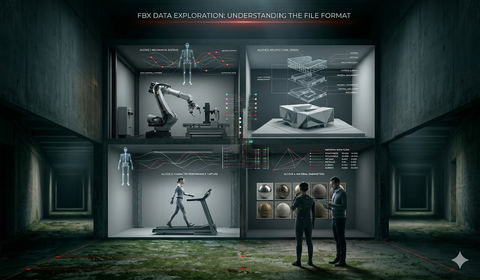
FBX animation is the default language of the game development pipeline. Whether you are working in Unreal Engine 5, Unity, Blender 4.x, or iClone — the first format every tool reaches for when exchanging 3D character animation is FBX. Understanding what the FBX format actually contains, where it came from, how it compares to alternatives, and what to watch out for in each DCC tool will save you hours of troubleshooting and help you evaluate animation assets before you buy.
What Is FBX?
FBX stands for Filmbox — the original name of the software it was created for. Kaydara developed Filmbox in the mid-1990s as a motion capture visualization tool. The format was designed from the start to carry character animation data: skeletal rigs, motion curves, and 3D geometry in a single portable file.
Autodesk acquired Kaydara in 2006 and with it, full ownership of the FBX format. Since then, Autodesk has maintained FBX as a proprietary standard — the format is free to use but controlled and specified by Autodesk. The FBX SDK, which most tools use to read and write FBX files, is provided under Autodesk's SDK license.
Despite being proprietary, FBX became the de facto interoperability standard for 3D assets because Autodesk's tools (Maya, 3ds Max, MotionBuilder) dominated the professional animation and game development market during the years when game engine pipelines were being established. When Unreal Engine and Unity both adopted FBX as their primary animation import format, the format's position was cemented.
Current versions: FBX 2020 is the most recent specification. FBX 2019 and 2018 are widely used and supported by all major tools. FBX 2014/2015 still circulates in older pipelines.
What's Inside an FBX File
An FBX file is a container. It can hold several distinct types of data, which is both its strength (everything in one file) and a common source of confusion.
Geometry (Mesh): Polygon mesh data — vertex positions, normals, UV coordinates, vertex colors. An FBX can contain a static mesh with no animation, a skinned mesh with no animation (T-pose character), or both geometry and animation in one file.
Skeleton / Rig: A bone hierarchy defined as a series of nodes with parent-child relationships. Each bone has a name, a rest pose transform, and skinning weights that determine how the mesh deforms as the bone moves. The skeleton is the critical compatibility constraint — animations only transfer between rigs that share bone names and hierarchy.
Animation Curves: Per-bone transform data recorded over time. Each bone has up to nine curves: X/Y/Z translation, X/Y/Z rotation (as euler angles or quaternions), and X/Y/Z scale. For a 60-bone humanoid at 30fps, a single minute of animation generates roughly 60 × 9 × 1800 = 972,000 keyframe values. Compression is applied on import by game engines.
Materials and Textures: FBX supports embedded material definitions and optional embedded texture data. For animation import workflows in game engines, materials are generally discarded or handled separately — most developers import animation-only FBX files with no geometry.
Embedded vs. Referenced: An FBX file can embed binary texture data directly inside the file, or reference external texture files by path. Embedded FBX files are self-contained but larger. Referenced FBX files are smaller but break if the texture paths change.
FBX vs. Other Animation Formats
FBX is dominant but not alone. Understanding the alternatives helps when evaluating tools, converting assets, or working with vendors who deliver in different formats.
| Format | Full Name | Owner | Animation Support | Primary Use |
|---|---|---|---|---|
| FBX | Filmbox | Autodesk | Full (skeleton + curves) | Game engines, DCC tools, broadcast |
| BVH | BioVision Hierarchy | BioVision (open) | Motion curves only (no mesh) | Raw mocap data exchange |
| GLTF / GLB | GL Transmission Format | Khronos Group | Full (skeleton + curves) | Web 3D, real-time, interoperability |
| Collada (DAE) | Collaborative Design Activity | Khronos Group | Full | Legacy interchange, Blender |
| USD / USDZ | Universal Scene Description | Pixar / Apple | Full (layers) | VFX pipelines, Apple AR, USD workflows |
FBX vs. BVH: BVH is the simplest mocap exchange format — it stores only bone rotation and root position data with no geometry. BVH is useful for raw motion capture data transfer between capture systems and DCC tools, but it carries no mesh and no material data. You cannot import a BVH directly into UE5 or Unity and expect a working character. FBX is the right choice for any game engine workflow.
FBX vs. GLTF: GLTF (and its binary variant GLB) is an open standard with growing support. It is the preferred format for web-based 3D (Three.js, Babylon.js, model-viewer) and is increasingly supported in game engines. Blender 4.x treats GLTF as a first-class format. UE5 can import GLTF geometry but animation support via GLTF in UE5 is limited compared to FBX as of UE5.4. For game engine animation workflows in 2025, FBX remains more reliable.
FBX vs. USD: USD is Pixar's scene description format, built for large-scale VFX production with non-destructive layering and composition. It is increasingly used in Unreal Engine's virtual production workflows and Apple's ecosystem (USDZ for AR). For game animation packs and character locomotion, USD adds complexity without significant workflow benefit over FBX.
FBX Animation in Unreal Engine
UE5 imports FBX animation via the Content Browser right-click → Import workflow. Key settings: select the target skeleton, enable Import Animations, match the frame rate. UE5 supports FBX 2016 through 2020. The most common compatibility issue is unit scale — FBX exported in meters rather than centimeters will import at 100x the correct size.
For a complete step-by-step walkthrough of the full UE5 mocap import pipeline — including skeleton setup, retargeting, Animation Blueprints, and common error fixes — see our dedicated guide: How to Use Motion Capture Animations in Unreal Engine 5.
FBX Animation in Unity
Unity's FBX import pipeline is accessed by dragging an FBX file into the Project panel or placing it in an Assets folder. Select the imported asset, and in the Inspector configure three tabs:
Model tab: Controls geometry import. For animation-only FBX, set Meshes to off or leave defaults.
Rig tab: Set Animation Type to Humanoid for standard biped characters. Unity's Humanoid rig type uses an avatar mapping system that abstracts bone names — this means Humanoid-tagged animations can transfer between any Humanoid character without retargeting, as long as bone mapping is correct. Set Animation Type to Generic for non-humanoid or custom rig workflows.
Animations tab: Lists the animation clips inside the FBX. Define clip ranges here if multiple animations are packed into one FBX file. Set Loop Time and Loop Pose for locomotion clips. Configure Root Transform settings for in-place vs. root motion.
Unity 2023's FBX pipeline is unchanged from Unity 2022 LTS in its core functionality. The FBX Exporter package (available via Package Manager) adds roundtrip FBX export for sending Unity-edited assets back to DCC tools.
FBX Animation in Blender
Blender 4.x imports FBX via File → Import → FBX. The key option is Armature settings:
- Ignore Leaf Bones: Check this for most mocap FBX imports. Leaf bones are zero-length terminal bones that some exporters add to cap the skeleton hierarchy. Importing them in Blender creates spurious bones that can confuse retargeting and export.
- Automatic Bone Orientation: Blender's native bone orientation convention differs from Maya and MotionBuilder. Checking this option lets Blender adjust bone orientations on import to better match its native forward axis. Results vary — for complex rigs, leave this unchecked and manually correct orientation if needed.
- Force Connect Children: Connects child bones visually to their parents even when there is a gap in the rest pose. Useful cosmetically but should not affect animation playback.
Post-import, the animation data lives in Blender's Action system. Each animation clip is a separate Action. View and edit them in the Action Editor or Dope Sheet. The NLA Editor (Non-Linear Animation) allows stacking and mixing multiple actions on a single armature.
A known Blender 4.x FBX consideration: Blender uses Y-forward, Z-up coordinate convention. FBX files exported from Maya use Y-up. On import, Blender rotates the entire scene to compensate, which can result in armatures arriving rotated 90 degrees on the X axis. The usual fix is to apply the armature's rotation (`Ctrl+A → Apply → Rotation`) after import.
FBX Animation in iClone / Character Creator
iClone (Reallusion) treats FBX as both an import and export format. iClone's character system uses the CC (Character Creator) skeleton. Importing FBX animations into iClone requires the source animation to be on the CC skeleton or a retargeting step via iClone's Motion Director or the optional Auto Import Retargeting feature.
MoCap Online's iClone format packs are pre-mapped to the CC skeleton, bypassing the retargeting requirement for Character Creator characters. For custom characters in iClone, import the FBX and use iClone's retargeting tools to remap the bone chains.
Common FBX Problems and Solutions
Wrong scale — character imports at 100x correct size.
The FBX was exported with scene units set to meters instead of centimeters (or vice versa). Most game engines and DCCs default to centimeters. Fix: Re-export from the source with centimeter units, or on import in UE5 set Import Uniform Scale to 0.01. In Blender, the FBX import dialog has a Scale option — set to 0.01 to correct meter-to-centimeter scale.
Missing textures after import.
The FBX was exported with externally referenced textures, and the texture files are not at the referenced path on the importing machine. Fix: Re-export with embedded textures (for small asset sets), or copy texture files to the path specified in the FBX, or manually assign materials after import.
Skeleton doesn't match — T-pose or no deformation.
The animation was authored for a skeleton with different bone names or hierarchy than the character in your project. Fix: Use retargeting tools appropriate to your engine (UE5 IK Retargeter, Unity Humanoid avatar, Blender's action retarget tools). For prevention, source FBX animations specifically built for your target skeleton — MoCap Online packs include format-specific versions for UE5, Unity Humanoid, and other common configurations.
Animation plays at wrong speed.
The FBX was authored at a different frame rate than the project. A 24fps animation imported into a 30fps project will play 25% slower than intended unless the engine re-times it. Fix: On import in UE5, set the frame rate override. In Unity, check the clip settings for playback speed. In Blender, the FBX importer can adjust for frame rate mismatches if "Set Frame Rate" is enabled.
How to Choose Quality FBX Animation Packs
When evaluating FBX animation packs, five factors determine whether they will work cleanly in your pipeline:
- Skeleton compatibility. Does the pack target the skeleton your character uses? A UE5 Mannequin-targeted pack eliminates retargeting. A generic FBX requires it.
- Frame rate. Is the animation delivered at a rate that matches your project? 30fps is the most compatible for game projects.
- Loop quality. For locomotion clips, confirm loop points are clean — no pop at the cycle boundary, feet not sliding on contact.
- Root motion vs. in-place. Are locomotion clips delivered in both root motion and in-place variants, or only one? Some pipelines need root motion; others drive character movement from code.
- Scale. Is the skeleton scaled correctly for the engine? A 100x scale issue discovered after integrating 200 animations is costly to fix.
MoCap Online packs are delivered with engine-specific format variants — UE5, Unity, Blender, iClone, and FBX — each configured for that tool's pipeline requirements, addressing all five factors before you even open the import dialog.
FAQ
What program opens FBX files?
Any major 3D application opens FBX: Autodesk Maya, 3ds Max, MotionBuilder, Blender 4.x, Cinema 4D, and game engines Unreal Engine 5 and Unity. For quick preview without a full DCC tool, Autodesk's free FBX Review application (Windows and macOS) opens and plays FBX animations. Microsoft's 3D Viewer on Windows 10/11 can also display FBX geometry, though animation playback support is limited. Our BIP format for 3ds Max page has full compatibility details.
Is FBX better than BVH for game development?
Yes, unambiguously. BVH contains only motion curves — no mesh, no materials, no embedded skeleton definition beyond a basic joint hierarchy. Game engines cannot use BVH directly for character animation; they need an FBX (or GLTF) file that pairs motion data with a properly defined skeleton. BVH is useful for raw motion capture data exchange between capture hardware and DCC software, but FBX is the correct format for any game engine delivery. For definitions of these terms, see our complete animation glossary.
Can I convert FBX to other formats?
Yes. Blender is the most accessible free tool for FBX conversion — import the FBX and export as GLTF, OBJ, Collada, or other formats Blender supports. For BVH, MotionBuilder or Blender with the BVH exporter can convert FBX animation to BVH (motion curves only). Autodesk's FBX Converter utility (now archived but still downloadable) converts between FBX versions and to Collada/DAE. Note that conversion always involves some data loss — metadata, material setups, and some curve precision may not survive all conversion paths.
What does "baked" animation mean in FBX?
Baked animation means every bone's transform is explicitly stored at every frame, rather than as mathematical curves evaluated between keyframes (spline interpolation). Baked FBX imports predictably and consistently across all tools because there is no curve evaluation ambiguity — what you see at frame 15 in the DCC tool is exactly what the engine plays at frame 15. Unbaked (spline) animations can produce slightly different motion when opened in tools that evaluate curves differently. For motion capture data, baking is standard practice and recommended for game engine delivery.
Are FBX animations compatible with all game engines?
All major commercial game engines support FBX import: Unreal Engine 5, Unity, Godot 4 (via the Godot FBX importer), CryEngine, and others. Compatibility within a given engine depends on whether the FBX skeleton matches the project's character skeleton — the engine can import the file, but the animation data only drives the correct character if the bone hierarchy matches. Format-specific packs from MoCap Online are pre-configured per engine to minimize this compatibility work.
Conclusion
FBX has been the animation exchange format for professional game development for two decades, and that position is not changing in the near term. Understanding what the format contains, how it behaves in each tool, and what problems to anticipate gives you a faster path from purchased or captured animation data to working in-game character motion.
MoCap Online's animation library is available in FBX and engine-specific formats for Unreal Engine 5, Unity, Blender, and iClone. Browse the full animation collection, explore FBX animation packs specifically, or start with a free download to verify the format works with your project's pipeline before purchasing.
Download Professional FBX Animation Packs
All MoCap Online animation packs are available in FBX format, ready for immediate import into your Unreal Engine, Unity, Blender, Maya, or 3ds Max pipeline:
- FBX Animation Format Guide — technical specs, import settings, and pipeline tips
- Browse All FBX Animation Packs — 300+ packs covering every character type
- Free FBX Starter Pack — test FBX import compatibility before buying
- Zombie FBX Animations — full zombie locomotion, attack, and death cycles
- Fighting & Punch FBX Animations — boxing, combat, and brawling animation set
Every FBX pack includes both in-place and root motion versions, with animation speeds documented in cm/sec for accurate movement matching. Compatible with Unreal Engine 4/5, Unity (Mecanim humanoid), Blender 3.x/4.x, Maya 2022+, 3ds Max, Cinema 4D, and iClone. Standard license covers all commercial game development use.
Related Articles
- What is Motion Capture? A Complete Guide for Game Developers
- BVH Animation Files: What They Are and How to Use Them
- How to Use Motion Capture Animations in Unreal Engine 5
- Unity Motion Capture Animation: Complete Integration Guide
- Browse All Motion Capture Packs
Available Animation Formats
MoCap Online animations are available in all major formats:
Questions about our animation packs? Check our frequently asked questions.
Related Reading
Ready to get started with FBX animations?
FBX has become the default interchange format for 3D animation because every major engine and DCC tool reads it natively. Understanding how FBX stores skeleton hierarchies, animation curves, and blend shape channels helps teams avoid the retargeting headaches that often surface when moving assets between packages.
When working with FBX animation files, one of the most common challenges is ensuring that skeleton hierarchies match between the source file and the destination rig. Bone naming conventions vary between motion capture studios, DCC tools, and game engines, so developers often need to create custom retargeting maps that translate joint names from one naming scheme to another. Most engines provide built-in retargeting tools for this purpose, but understanding the underlying skeleton structure helps troubleshoot issues like twisted limbs or offset root motion.
FBX files can store multiple types of animation data simultaneously, including skeletal transforms, morph target weights for facial animation, and custom curve channels for procedural effects. This flexibility makes FBX the preferred format for cinematic sequences where body performance, facial expressions, and props all need to stay synchronized. When exporting from motion capture software, artists should verify that the FBX export settings include all necessary data channels and that the coordinate system matches the target engine to avoid axis flipping.
Performance optimization with FBX animations often involves reducing keyframe density without visible quality loss. Raw motion capture data typically contains keys on every frame at the capture rate, which produces large files that consume memory at runtime. Curve simplification algorithms can remove redundant keys while preserving the essential motion profile, reducing file sizes by fifty percent or more while maintaining visual fidelity during gameplay. For tips on keeping performance smooth, read our animation memory optimization guide.
Batch processing workflows for FBX animation files save significant time when managing large motion capture libraries. Studios commonly write scripts that automatically rename bones to match their engine conventions, strip unnecessary helper joints, set root motion extraction modes, and apply consistent compression settings across hundreds of files. Both Unreal Engine and Unity support command-line import tools that can process entire directories of FBX files with predefined import settings, eliminating the manual work of configuring each file individually.
Version compatibility between FBX SDK releases occasionally causes import issues when files created in newer software versions are loaded into older applications. The FBX format has evolved through multiple revisions, each adding support for new data types and changing how certain properties are stored. When encountering import errors or missing data, converting the file through the Autodesk FBX Converter utility or re-exporting from the source application with an older FBX version selected often resolves the incompatibility without any loss of animation data.
Understanding root motion in FBX animation files is essential for game developers. Root motion determines whether character translation comes from the animation data or from code-driven movement. When root motion is enabled, the character position updates based on the skeletal root bone displacement baked into the animation clip. This approach ensures that foot plants, lunges, and directional changes look physically grounded because the visual movement matches the actual distance the character covers. Disabling root motion gives programmers direct control over movement speed and direction, using the animation purely for visual display.
Additive animations stored in FBX files let developers layer secondary motion on top of base clips without creating unique versions for every combination. A breathing additive applied over a standing idle creates the chest rise and fall that makes static poses feel alive. A hit reaction additive blended over a run cycle shows the character absorbing damage without breaking stride. Building a library of additive clips from motion capture data multiplies the effective animation count exponentially, since each additive can combine with any compatible base animation.
Scale and unit settings in FBX exports are a persistent source of confusion when moving files between applications that use different measurement units. Maya defaults to centimeters, 3ds Max to system units that may be inches or centimeters, and Unreal Engine uses centimeters while Unity uses meters. Mismatched unit settings produce characters that appear one hundred times too large or too small after import. Setting the FBX export scale factor explicitly and verifying the result in the destination application before processing an entire batch prevents scale issues from propagating through the animation pipeline.