

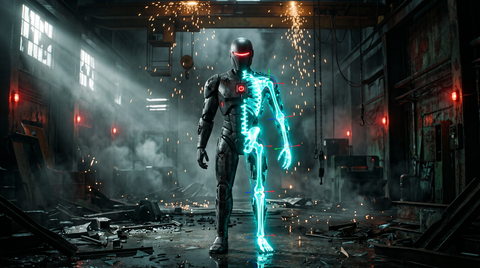
Every 3D character animation starts with a skeleton. The skeleton 3D model, also called a rig or armature, is the invisible bone structure inside a character mesh that defines how it moves. Getting the skeleton right is critical because it determines which animations work with your character, how they deform, and whether motion capture data retargets correctly.
This guide explains skeleton 3D models, humanoid rigging standards, and why skeleton compatibility matters when building a game animation pipeline.
What Is a Skeleton 3D Model?
A skeleton 3D model is a hierarchical chain of bones embedded inside a character mesh. Each bone controls a region of the character's body. When a bone rotates, the mesh vertices assigned to it move along, creating the appearance of natural body movement.
The skeleton is separate from the visual mesh. You can swap the mesh (changing the character's appearance) while keeping the same skeleton. This is how games apply the same animations to different characters, as long as they share the same skeleton structure.
Key Components of a Character Skeleton
- Root bone — The base of the hierarchy. All other bones descend from it. Root motion (character movement through world space) is typically driven by this bone.
- Spine chain — Usually 3-4 bones from the pelvis up through the chest to the neck. Controls torso bending and twisting.
- Arm chains — Clavicle, upper arm, forearm, and hand bones for each side. May include twist bones for smoother forearm rotation.
- Leg chains — Thigh, calf, and foot bones. Some rigs add toe bones for foot-roll animation.
- Head and neck — Neck bone plus head bone. More detailed rigs add jaw and eye bones for facial animation.
- Fingers — Three bones per finger (proximal, middle, distal) on each hand. Essential for weapon grips and gesture animations.
Humanoid Skeleton Standards
Not all skeletons are built the same. Different software and game engines expect different bone names, orientations, and hierarchies. Understanding these standards helps you avoid painful retargeting issues.
Unreal Engine Skeleton
Unreal Engine uses its own mannequin skeleton as the standard reference. The UE5 skeleton includes 67 bones with specific naming conventions (root, pelvis, spine_01 through spine_03, neck_01, head, etc.). Animations built for this skeleton import directly without retargeting. Unreal-ready animation packs match this standard exactly.
Unity Humanoid Avatar
Unity's Mecanim system uses a Humanoid Avatar definition that maps any skeleton to a standard set of 15 required bones (plus optional extras). As long as your skeleton has the required bones, Unity's retargeting system handles the mapping automatically. Unity animation packs are configured for this system.
Mixamo Skeleton
Mixamo uses its own bone naming convention (mixamorig:Hips, mixamorig:Spine, etc.). Mixamo animations work with Mixamo-rigged characters but require retargeting for other skeletons.
BVH and CMU Standard
BVH files from motion capture databases often use their own naming conventions. The Carnegie Mellon University database is one of the most common BVH sources. These files need retargeting to match your character's skeleton.

Why Skeleton Compatibility Matters
Skeleton compatibility is the difference between dropping an animation onto your character in seconds versus spending hours fixing retargeting errors. Here is why it matters:
Animation Reuse
When all your characters share the same skeleton, any animation works on any character. One walk cycle serves your entire character roster. One combat animation pack covers every fighter. This dramatically reduces both production time and file size.
Motion Capture Integration
Professional motion capture data is recorded to a specific skeleton. If your character's rig matches that skeleton, the mocap data applies directly. If it does not match, you need to retarget, which can introduce artifacts like foot sliding, joint pops, or incorrect limb proportions.
This is why standardized skeletons are so valuable. FBX animation packs that use a consistent skeleton structure let you build a library that works across your entire project without per-character adjustments.
Engine Performance
Game engines optimize animation based on skeleton structure. Shared skeletons mean shared animation data in memory. Different skeletons for each character multiply your animation memory footprint.
Building a Game-Ready Skeleton
If you are creating your own character rig, follow these guidelines:
- Start with your engine's standard. If you are building for Unreal, match the UE5 mannequin skeleton. For Unity, ensure your rig satisfies the Humanoid Avatar requirements.
- Use consistent bone orientation. All bones in a chain should face the same direction. Inconsistent orientations cause animation curves to behave unpredictably.
- Add twist bones for realism. Forearm and upper arm twist bones prevent the "candy wrapper" deformation that happens when a single bone handles all the rotation.
- Keep the hierarchy clean. No floating bones, no circular dependencies, no extra helper bones that your engine cannot process.
- Test with actual animations. Rig testing is not complete until you have imported and played real animation data on it. Use a free animation pack to verify your skeleton works before committing to a full production rig.
Retargeting Between Different Skeletons
When animation data comes from a different skeleton than your character uses, you need retargeting. Here is how the major tools handle it:
- Unreal Engine IK Retargeter — Map source bones to target bones, adjust IK chains, and preview the result in real time. Handles proportion differences well.
- Unity Mecanim — Automatic retargeting between any two Humanoid Avatars. Works well when both skeletons have clean hierarchy and correct bone roles.
- Blender — Use Auto-Rig Pro or community retargeting add-ons. Blender's constraint system can also build custom retargeting setups. See our Blender retargeting guide for the full workflow.
- MotionBuilder — The industry standard for mocap retargeting. Characterize your skeleton, map it to the source, and retarget with real-time preview.

Common Skeleton Problems and Fixes
- Foot sliding. Usually caused by incorrect root bone position or mismatched leg proportions during retargeting. Lock the feet with IK or adjust the retarget profile.
- T-pose vs A-pose mismatch. If your character was rigged in A-pose but the animation expects T-pose (or vice versa), the arms will be offset. Set the correct reference pose before retargeting.
- Flipped axes. Different software uses different axis conventions (Y-up vs Z-up). FBX export settings must match your engine's expectations.
- Missing bones. If the animation targets bones that do not exist in your skeleton, those movements are lost. Make sure your rig includes all the bones your animation data needs.
Get Started with Standard Skeleton Animations
The fastest way to build a reliable character animation pipeline is to start with animations that use a consistent, well-documented skeleton standard. MoCap Online animation packs are captured to a standardized skeleton and available in every major format, so you spend less time fixing retargeting issues and more time building your game.
Try the Free Sampler Pack to test compatibility with your character rig, then expand with specialized packs as your project grows.
Skeletal Animation: How It Works Under the Hood
Understanding the technical foundation of skeletal animation makes you a better rigger and a better debugger. The math underneath is more accessible than it appears.
The Bind Pose and Why It Matters
The bind pose (sometimes called the rest pose or reference pose) is the character's default position when no animation is applied — typically A-pose or T-pose. Skin weights are calculated in bind pose: for each vertex, the rigging artist specifies how much each nearby bone influences that vertex's position. These weights are stored relative to the bind pose and don't change after rigging.
When an animation moves a bone away from its bind pose, the transformation is expressed as a matrix that represents the difference from the bind pose position. The vertex shader applies these parent bone transforms up the skeleton hierarchy to compute where each vertex should be in world space. This is why the bind pose is critical — it's the reference state from which all animation deltas are measured. A skeleton that was skinned in T-pose and then animated with A-pose data will have its rest pose arms elevated, because the animation data's zero-rotation state maps to A-pose, not the T-pose bind pose.
Transform Matrices and the Skeleton Hierarchy
A skeleton is a hierarchy of bones, each with a local transform (position, rotation, scale) relative to its parent bone. To find a bone's position in world space, you multiply its local transform by its parent's world transform, multiplied by the grandparent's world transform, and so on up to the root bone.
This means changing a parent bone's rotation rotates all child bones with it — rotating the shoulder automatically moves the upper arm, forearm, and hand. It also means that a small root bone translation moves the entire character, which is how root motion works. The root bone's transform is the foundation of the entire transform matrix chain.
Linear Blend Skinning and Its Limitations
Linear blend skinning (LBS) is the standard skinning algorithm used in real-time games. For each vertex, it computes a weighted sum of the bone transform matrices that influence it, then applies that blended transform to the vertex position. LBS is fast and hardware-accelerated on every GPU — it's why modern games can render thousands of animated characters at 60fps.
LBS has a known limitation: the "candy wrapper" artifact at joints that rotate significantly, such as a forearm in full pronation/supination. Because LBS linearly interpolates matrices, it loses volume at extreme rotation angles — the mesh appears to collapse inward at the joint. Games address this with corrective blend shapes (pre-modeled mesh deformations triggered at specific rotation values), dual quaternion skinning for affected joints, or simply designing animations that avoid the extreme rotation ranges where LBS artifacts are visible.
Bone Count Optimization
More bones give artists more deformation control but increase the per-character skeletal evaluation cost. A standard game character skeleton uses 65–100 bones. Background characters and crowd members can use simplified 20–35 bone skeletons. The simplification removes finger bones, facial bones, and secondary deformation bones while retaining all core limb and spine bones. Simplified skeletons animate more cheaply and retarget from full-skeleton animation packs with minimal quality loss for locomotion and action clips.
Game Skeleton Optimization: Bone Count, Axis Conventions, and Export-Ready Rigging
Bone count in a game skeleton is a performance budget item with diminishing returns above 65-70 bones for standard humanoid characters. The human body's meaningful articulation points — spine, shoulders, hips, knees, ankles, elbows, wrists — are covered by 35-45 bones for a complete body rig. The remaining bones in high-count rigs are typically dedicated to facial animation (20-30 joints for realistic facial deformation), finger articulation (15 joints for fully articulated hands), and secondary dynamics (hair, clothing, tail). For game projects that don't require facial animation in real-time and don't have physics-simulated clothing, a streamlined 45-55 bone rig performs better and retargets more cleanly from standard motion capture data than a high-count rig. The performance cost of evaluating an extra 20 unnecessary bones compounds across every character in a scene — a crowd scene with 40 characters pays that cost 40 times per frame.
Axis conventions are the source of the most common rigging-to-engine incompatibilities. The game industry has de facto standardized on Y-up for world space (Unreal Engine, Unity, most real-time engines) and Y-forward for character facing, but content creation tools do not agree: Maya defaults to Y-up and Z-forward, Blender defaults to Z-up and Y-forward, 3ds Max defaults to Z-up and Y-forward. When a character is rigged in Blender and exported to Unreal Engine via FBX, the axis conversion applied during FBX export must be set correctly, or the character arrives in-engine facing the wrong direction or lying on their side. The export settings that produce correct results: for Blender FBX export targeting Unreal Engine, set Forward axis to -Z and Up axis to Y before exporting. For Maya FBX export targeting Unreal, the default settings are typically correct. Documenting the correct export settings for each tool combination in use is a one-time effort that prevents repeated debugging of axis-related import issues.
Rig validation before handing off to animation should include three explicit checks that catch the most common rigging errors: a full 360-degree rotation test on each major joint to verify that no inverse kinematics constraints limit the rotation range unexpectedly, a bind pose verification that confirms the bind pose exactly matches the T-pose or A-pose that the animation pipeline expects, and a weight paint review at every major joint bend (elbow, knee, shoulder, wrist) to confirm that skin weights produce clean deformation at extreme poses. These three checks take 30-60 minutes to complete systematically and catch the errors that otherwise surface during animation production — at which point fixing them requires re-exporting and re-rigging all previously animated content.