

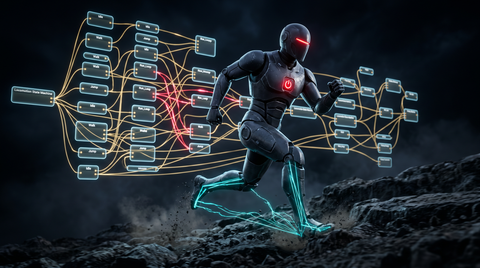
What Are Unreal Engine Animation Blueprints?
Animation Blueprints are Unreal Engine's core system for driving character animation at runtime. Unlike a static animation asset that simply plays from start to finish, an Animation Blueprint responds to game state — reading character velocity, health, weapon state, or any variable you expose — and dynamically selects, blends, and transitions between animations to produce believable movement. For game developers working with professional motion capture data, Animation Blueprints are the bridge between raw mocap clips and a living, breathing character.
At their core, Animation Blueprints are specialized Blueprint graphs with two primary sections: the AnimGraph, which defines the final output pose each frame, and the EventGraph, which runs standard Blueprint logic to update variables the AnimGraph reads. This separation keeps animation logic clean and performant.
When you bring in professional mocap assets from a library like MoCap Online's Unreal Engine collection, Animation Blueprints are what give those clips purpose. A beautifully captured run cycle only becomes a proper locomotion system when an Animation Blueprint is driving which clip plays, at what speed, and how it blends with idles, turns, and stops.
AnimGraph vs EventGraph: Understanding the Difference
New developers often confuse the two graphs. The distinction is fundamental.
The EventGraph works just like any other Blueprint graph. It runs on tick (or in response to events), reads game data, and updates variables. Here you'd write logic such as: "Read the character's velocity vector from the movement component. Store the speed as a float. Check whether the character is in the air." You never output a pose here — you only update variables.
The AnimGraph runs each frame and outputs a single pose to the skeletal mesh. It reads those same variables from the EventGraph and uses them as inputs to nodes like Blend Spaces, State Machines, and blend nodes. The AnimGraph operates on the animation thread (in Unreal Engine 5, often on a worker thread), so it must not call game-thread functions directly — another reason variable updates belong in the EventGraph.
A common practical split: in the EventGraph, cache bIsInAir from the movement component. In the AnimGraph, use that cached bool to transition a State Machine from a ground locomotion state to an airborne state.
State Machines: The Backbone of Mocap-Driven Characters
State Machines inside the AnimGraph define which "state" your character is in — Idle, Walk, Run, Jump, Fall, Land — and the conditions that trigger transitions between those states. For mocap-heavy games, State Machines are indispensable because professional mocap clips are typically captured per-state: a dedicated idle clip, a dedicated run cycle, separate jump/fall/land animations.
A typical locomotion State Machine might include these states:
- Idle — Plays a looping idle mocap clip when speed is zero
- Walk/Run (Locomotion) — Drives a Blend Space based on speed and direction
- Jump Start — One-shot jump takeoff clip, transitions to Fall when velocity goes positive
- Fall Loop — Looping fall clip while in the air
- Land — One-shot landing clip, transitions back to Idle or Locomotion
Transition rules control when the state machine moves between states. A transition from Idle to Locomotion might fire when speed exceeds 10 cm/s. A transition from Jump Start to Fall Loop fires when the jump animation has played past a certain time threshold. These transitions can be instant or blended over a short duration (typically 0.1–0.2 seconds) to avoid jarring pops.
When using professional mocap clips, pay attention to the motion at clip boundaries. A mocap run cycle that starts with the left foot forward will create a visual pop if you enter it when the character's current pose has the right foot forward. Use Pose Matching or carefully set blend times to mitigate this. Unreal Engine 5's Motion Matching system takes this even further by selecting frames directly based on pose similarity.
Blend Spaces: Smooth Locomotion with Mocap Clips
A Blend Space is an asset that blends between multiple animation clips based on one or two floating-point inputs. For locomotion, the classic setup is a 2D Blend Space with speed on one axis and direction (or strafe angle) on the other. This allows a character to smoothly transition between walking straight, walking sideways, and running without abrupt cuts.
1D Blend Spaces
A 1D Blend Space uses a single input parameter. The most common example is a speed-based locomotion blend: at 0 you have an idle, at 150 cm/s a walk, at 375 cm/s a jog, at 600 cm/s a run. Unreal interpolates between clips based on where the input falls along that axis. For simple games or NPCs with limited movement variety, 1D Blend Spaces provide excellent results with minimal setup.
2D Blend Spaces
A 2D Blend Space blends based on two axes, producing a grid of sample points. The typical locomotion setup uses:
- X Axis — Strafing direction (−90° left to +90° right, or −180° to +180° for full 360° coverage)
- Y Axis — Speed (0 to maximum run speed)
You populate the grid with mocap clips: forward walk, forward run, strafe left walk, strafe right run, backward walk, and so on. The more coverage clips you provide, the smoother the blending. MoCap Online's locomotion packs include directional variants specifically designed for 2D Blend Space use.
Key settings to configure in Blend Spaces:
- Interpolation time — How fast the blend space input value moves toward the target. A value of 6–8 typically provides responsive but smooth transitions.
- Snap to closest sample — Disabling this enables smooth blending; enabling it creates snappier transitions useful for action games.
- Per-bone override — Available in UE5, allows certain bones to follow different blend rules.
Playing Mocap Animations Directly
Not every animation needs a State Machine or Blend Space. For one-shot interactions, cutscene-adjacent moments, or specific action beats, you can play mocap clips directly inside the AnimGraph using the Play Animation node or by referencing a Sequence Player node.
When working with mocap clips directly:
- Set Loop Animation to false for one-shot clips (pickups, deaths, reactions)
- Use Play Rate to speed up or slow down without re-exporting the asset
- Use Start Position to enter a clip mid-way — useful for continuing a motion from a blended exit point
For cinematic sequences, consider using Unreal's Sequencer with a Pose Snapshot at the start to capture the character's current runtime pose, then blend into the cinematic animation. This eliminates jarring snap-to-pose transitions.
Aim Offsets: Layering Mocap onto Locomotion
Aim Offsets are a specialized Blend Space designed for additive blending. They let you overlay directional aiming poses on top of a locomotion animation, so a character can walk left while aiming up-right simultaneously.
To set up an Aim Offset for mocap:
- Capture or acquire a reference pose (typically an idle with weapon raised)
- Capture the same pose with maximum pitch up, pitch down, yaw left, yaw right
- Set all clips as Additive with the base pose as the reference
- Create the Aim Offset asset, populate the grid with these additive clips
- In the AnimGraph, apply the Aim Offset node after your locomotion layer, driving it with Pitch and Yaw from the character's aim vector
MoCap Online's weapon animation packs include aim offset-ready clips captured at multiple aim angles, minimizing the setup work required.
Additive Animations: Breathing, Recoil, and Overlays
Additive animations layer on top of a base pose rather than replacing it. Common uses with mocap data:
- Breathing — A subtle chest-rise animation applied additively at all times gives characters a sense of life even when standing still
- Recoil — A sharp backward-and-recover animation played as an additive loop for the upper body on weapon fire
- Hit reactions — Directional flinch animations applied additively based on incoming damage direction
- Lean — Subtle lean left/right based on movement acceleration for more dynamic locomotion feel
In the AnimGraph, additive nodes include Apply Additive, Apply Mesh Space Additive, and Layered Blend per Bone. Mesh space additives tend to look more correct for upper-body overlays on moving characters.
IK Solvers: Foot IK and Hand IK
Even the best mocap data was captured on a flat capture volume floor. Your game world has uneven terrain, stairs, slopes, and obstacles. IK solvers dynamically adjust extremity positions at runtime to keep feet grounded on surfaces and hands correctly positioned on weapons or objects.
Foot IK in Unreal Engine
The recommended approach in UE5 is the Control Rig with its built-in Full Body IK or the Two Bone IK nodes applied per leg. The workflow:
- Perform a line trace downward from each foot bone position
- Capture the hit normal and height of the surface
- Pass that data to the IK system to reposition the foot bone and rotate the ankle to match the surface normal
- Offset the hip bone downward by the amount needed to keep both feet grounded simultaneously
UE5's Control Rig Full Body IK simplifies this considerably — you mark feet as effectors, mark the pelvis as a root-pinned effector, and the solver handles the cascade of adjustments automatically. The result is mocap locomotion that looks natural on every surface.
Hand IK
For two-handed weapons, Hand IK ensures the off-hand remains correctly positioned on the weapon even as the animation system drives the dominant hand. Set the dominant hand as the IK target, then use a Two Bone IK node on the off-hand chain to track a socket on the weapon mesh. This is standard practice for all gun- and melee weapon-holding animations.
Animation Montages: Attacks, Abilities, and Special Actions
Animation Montages let you play animations on-demand from Blueprint code, independent of the State Machine. They're essential for:
- Attack combos and ability casts
- Interaction animations (opening doors, picking up objects)
- Emotes and non-locomotion actions
- Death animations with specific blend-out behavior
Montages are divided into Slots, which correspond to insertion points in the AnimGraph. A Slot node in the AnimGraph is where montage animations blend in. The most common setup: a FullBody slot for death/knockdown montages, and an UpperBody slot for attack montages that play over locomotion. The Layered Blend per Bone node splits the skeleton so the upper body can play a montage while the lower body continues running.
To play a montage from Blueprints: call Play Anim Montage on the Character, passing the Montage asset reference. You can control which section starts, adjust play rate, and bind callbacks to montage events.
Animation Notify Events
Animation Notifies are markers placed on the timeline of an animation clip that trigger events at precise moments. Use cases with mocap data:
- Footstep sounds — A notify fires exactly when the mocap data shows foot contact, triggering an audio component to play a surface-appropriate sound
- Weapon trace window — Notifies mark the start and end of a melee swing, enabling collision detection only during the actual attack arc
- VFX triggers — Spawn particles at the moment of impact, magic cast, or ability activation
- IK enable/disable — Disable foot IK during jump animations where it would fight the in-air pose
Notify States (with a begin and end event) are ideal for "windows" like weapon trace or ability charge. Standard Notifies (single-frame) are perfect for sounds and one-time effects. Notify State classes can be subclassed in Blueprint or C++ for full custom logic.
Locomotion Setup: A Practical Mocap Blueprint Recipe
Here is a complete starting recipe for a mocap-driven locomotion setup in Unreal Engine 5:
- Import your mocap clips — Idle, Walk (4 directions), Jog (4 directions), Run (forward), Jump Start, Jump Apex, Fall Loop, Land, Sprint
- Create a 2D Blend Space (Speed 0–600, Direction −180 to 180) and populate with directional walk and run clips
- Create the Animation Blueprint for your character's Skeleton
-
EventGraph: Get Character Movement Component, cache Speed (vector length of velocity), cache Direction (calculated from velocity vs aim direction using
Calculate Direction), cache bIsInAir, bIsCrouching - AnimGraph — State Machine: Idle → Locomotion (Blend Space) → Jump → Fall → Land
- Add a Slot node above the State Machine for montage support
- Add Layered Blend per Bone below the Slot — upper body follows montage slot, lower body follows locomotion
- Add Foot IK via Control Rig above everything else in the chain
- Add Aim Offset between Layered Blend and Foot IK, driven by pitch/yaw from the character's aim vector
This architecture handles 80% of locomotion needs for a third-person action game and scales cleanly for more complex requirements.
Tips for Mocap-Heavy Games
Keep clips clean at entry and exit frames. When importing mocap clips, make sure the first and last frames are clean — in T-pose or a neutral stance that blends well. Sloppy in/out frames cause visible pops in State Machine transitions.
Use Root Motion for precision movement. For actions where exact foot placement matters (rolling, dodging, vaulting), enable Root Motion in the clip properties and use a Root Motion Mode of "Root Motion from Everything." This moves the Character Actor based on the animation's root bone translation, matching physics to visual perfectly.
Retarget carefully. Mocap data captured on a specific skeleton must be retargeted to your game's skeleton. Use UE5's IK Retargeter for best results — it respects proportional differences between rigs and produces cleaner output than the older Retarget Manager.
Profile Animation Blueprint performance. Use Unreal's Animation Insights profiler (part of Unreal Insights) to catch expensive AnimGraph evaluations. Move complex logic to the EventGraph, use fast-path nodes where possible, and thread-optimize with the "Use Multi-Threaded Animation Update" option on the Skeletal Mesh Component.
Use Animation Sharing for large character counts. For games with many animated characters on screen simultaneously, the Animation Sharing Plugin batches Animation Blueprint evaluation across multiple instances, dramatically reducing CPU cost.
Frequently Asked Questions
What's the difference between an Animation Blueprint and a regular Blueprint?
A regular Blueprint is a general-purpose scripting tool for game logic. An Animation Blueprint is a specialized Blueprint that outputs a skeletal pose each frame. It has the unique AnimGraph editor alongside the EventGraph, and its output drives the pose of a Skeletal Mesh Component. You cannot drive character animation from a regular Blueprint the same way.
Can I use mocap animations without an Animation Blueprint?
Yes, but in limited ways. You can assign an animation sequence directly to a Skeletal Mesh Component's animation mode (set to "Use Animation Asset"), or play animations from the Single Animation mode. However, this doesn't support dynamic blending, State Machines, or runtime responsiveness. For any interactive character, an Animation Blueprint is necessary.
How do I set up root motion for a mocap roll or dodge animation?
In the import settings for the animation asset, enable "Force Root Lock" off and "Root Motion" on. Then in the Animation Blueprint, set the Root Motion Mode on the character's Skeletal Mesh Component to "Root Motion from Everything" or "Root Motion from Montages Only" depending on your needs. The Character Movement Component will consume the root bone's movement delta and translate the actor accordingly.
Why does my character's foot slide when using mocap locomotion?
Foot sliding occurs when the visual animation's stride length doesn't match the character's actual movement speed. Solutions: (1) Use the Speed variable to drive a Play Rate on your locomotion Blend Space so clips play faster/slower to match physics speed. (2) Use Root Motion so the animation itself drives movement speed. (3) Add Foot IK to plant feet to the ground during contact phases.
How many blend space samples do I need for smooth locomotion?
For a 2D Blend Space covering 360-degree movement at two speeds, 8–12 samples typically produce smooth results: forward/back/left/right at walk speed, and forward/back/left/right at run speed, with optional diagonal variants. More samples improve blending quality but increase the clip count. MoCap Online locomotion packs are pre-organized with blend space setups in mind.
Ready to Build Your Animation System?
Professional motion capture animations are only as good as the Animation Blueprint system that drives them. Whether you're building a combat game, an open-world RPG, or a multiplayer shooter, the architecture in this guide provides a solid, scalable foundation. Browse our full library of Unreal Engine-ready mocap packs — every clip is exported for direct import, organized by category, and tested for clean looping and blend-space compatibility. Your Animation Blueprint is ready. Fill it with world-class motion capture.